DINGERZONE

Train Smarter. Play Harder. AI-powered baseball swing tips for players, parents & coaches.

Getting Started & Advanced Features

Getting Started

New to DingerZone? Start here to download the app, create your account, and upload your first swings.

1
Get the App

Download DingerZone from the Apple App Store:

https://apple.co/3Js2maF

Open the app to begin setting up your account.

Tip: Turn on automatic app updates so you always have the latest features and improvements.
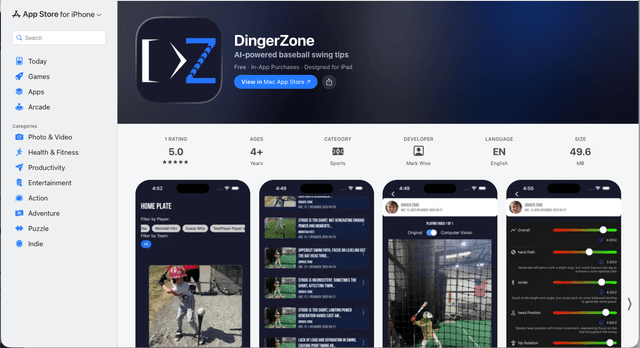
DingerZone app listing in the Apple App Store
2
Create Account & Manage Subscription

Create your login and unlock full AI-powered analysis.
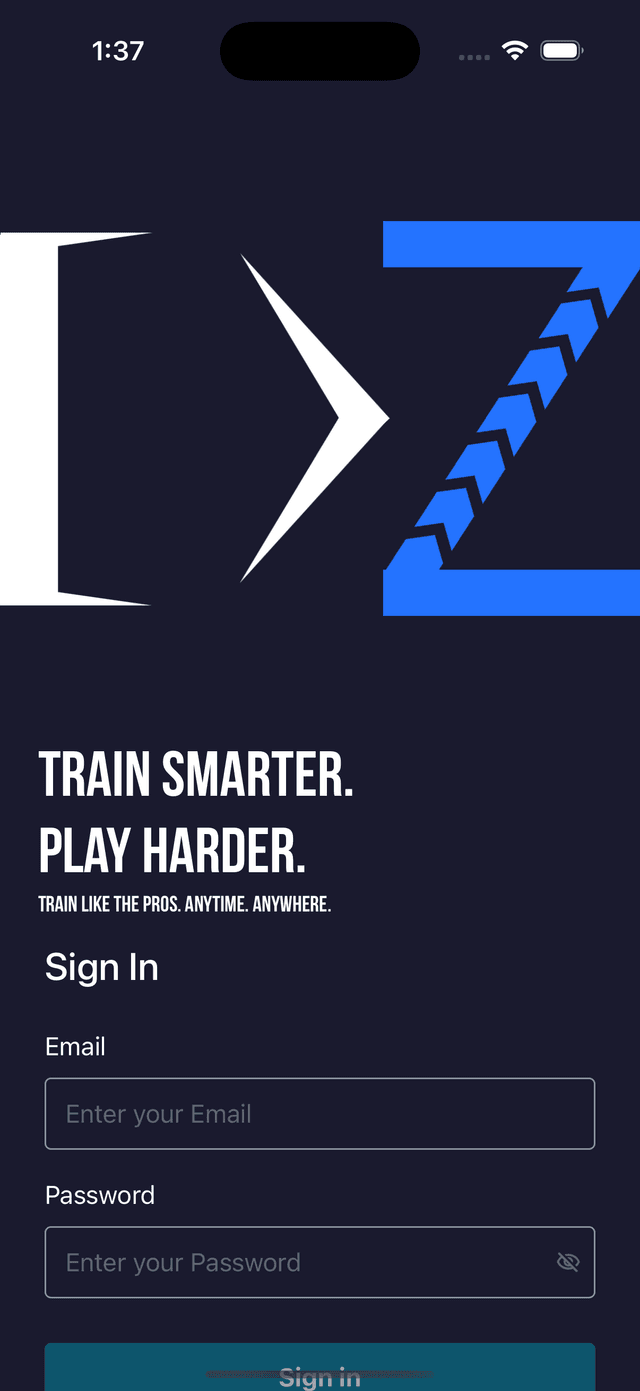
  • From the sign-in screen, choose to create a new account.
  • Enter your email and a secure password.
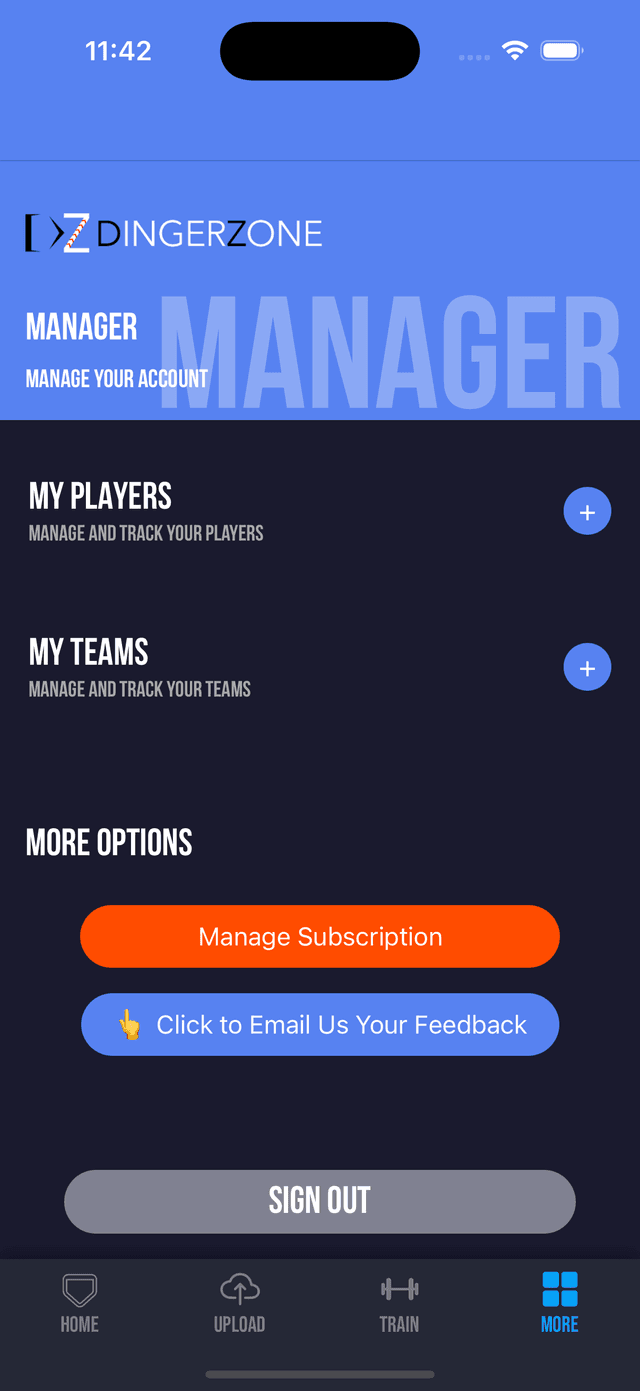
  • Open More > Manage Subscription to pick your plan.
You can update or cancel your subscription any time from Manage Subscription.
DingerZone sign-in screenSubscription management screen
3
Create Player

Set up at least one player for your account.
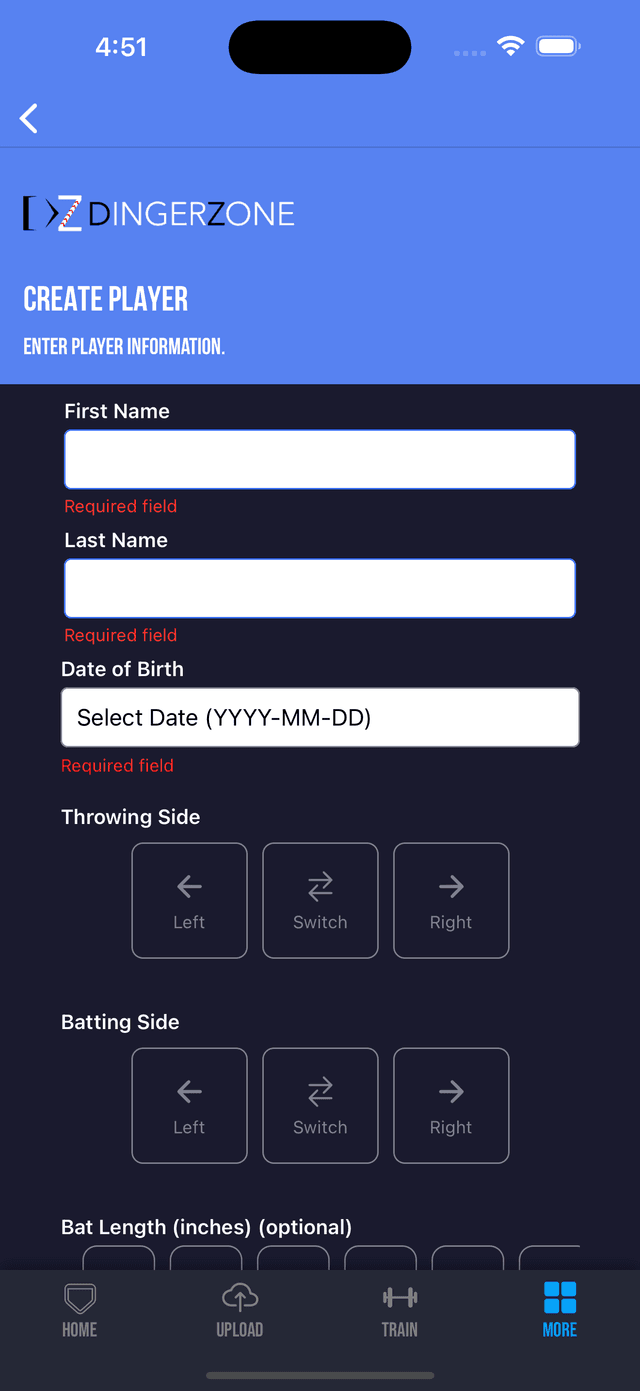
  • Go to More > My Players > Add Player.
  • Enter their name, DOB, throwing hand, and batting side.
  • Save to create their player profile.
Players can be assigned to multiple teams — great for travel, rec, and school ball.
Create player screen in DingerZone
4
Join Team

Connect your player to the right team.
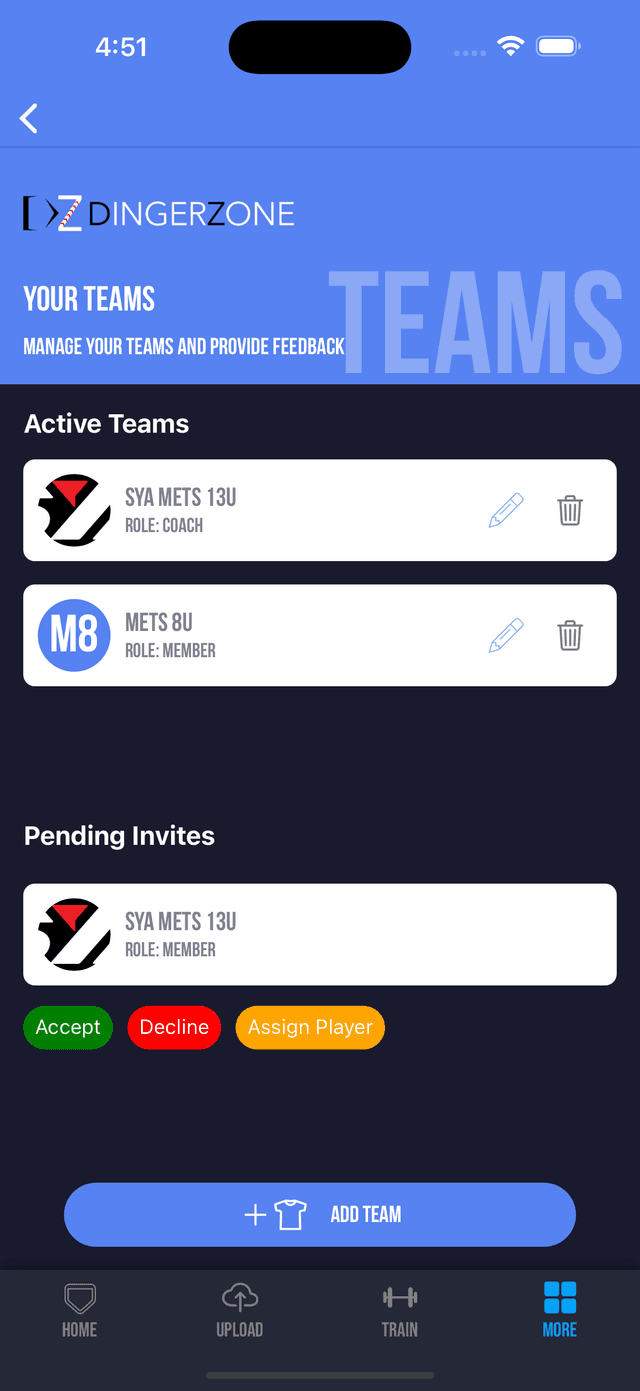
  • Open More > My Teams.
  • Use Pending Invites to accept your coach's invite.
  • Assign the correct player when prompted so their swings are linked to that team.
Teams and invites screen
5
Upload Swings

Send your first clips to the plate.

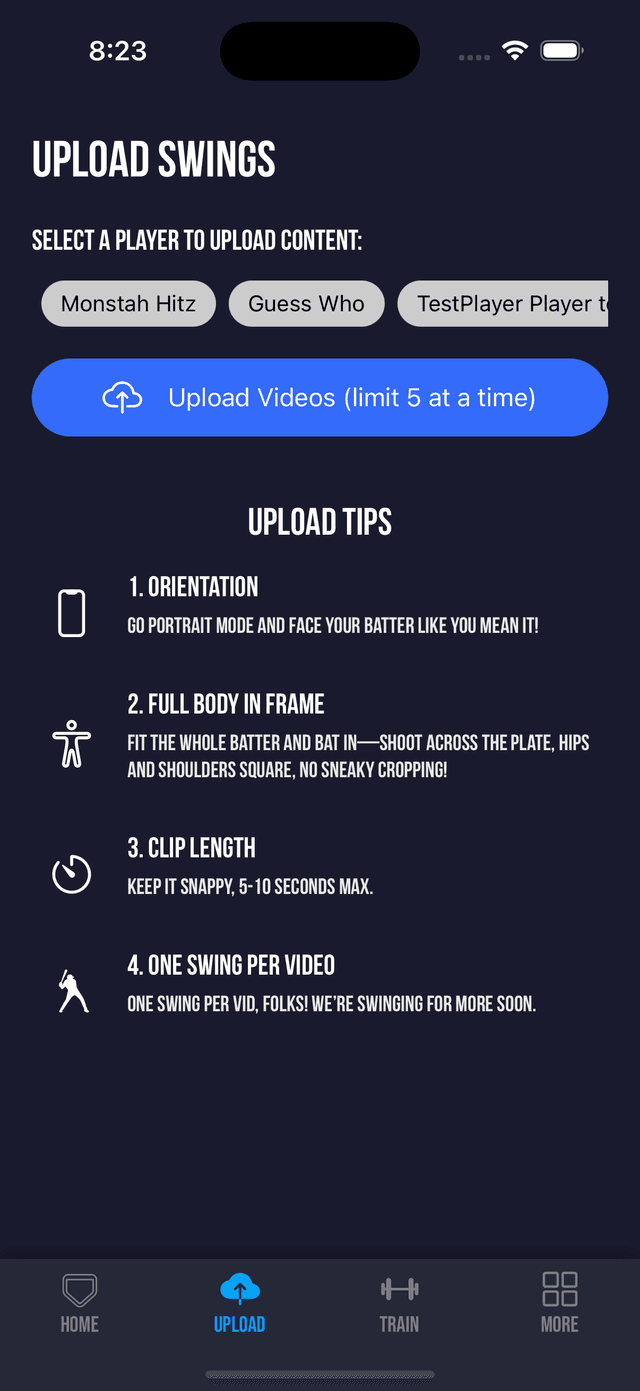
  • Tap the Upload tab.
  • Select your player and choose up to 5 clips from your camera roll.
  • Confirm to start AI processing.
Filming tips: portrait mode, full body in frame, 5–10 second clips, 1 swing per video, 60 fps if possible.
Upload swings screen

Advanced Features Guide

Once the basics are dialed in, use these tools to organize teams, go deeper on swings, leave rich feedback, and share highlight clips.
1
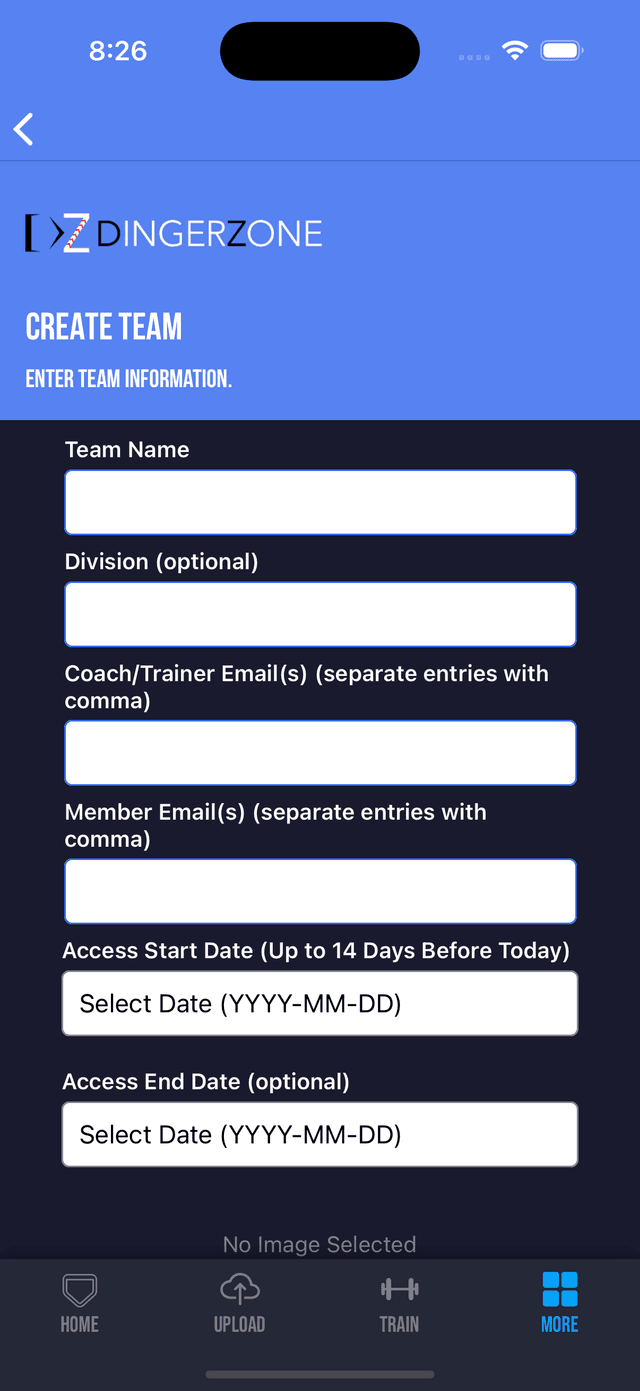
Create Team
Build your squad — coaches, players & parents all in one place.
  • Tap More > My Teams > Add Team.
  • Enter team name, age group, and season.
  • Add members by email (auto-invites sent).
  • Save to unlock the team dashboard.
Use clear names like "Club – Age – Season" (e.g., "DingerZ 14U – Spring 2028") so everyone knows exactly which team to join.
CoachesMulti-player familiesProgram admins
Team dashboard in DingerZone
2
Review Swings
AI instantly analyzes every swing — metrics, overlays, slow-mo.
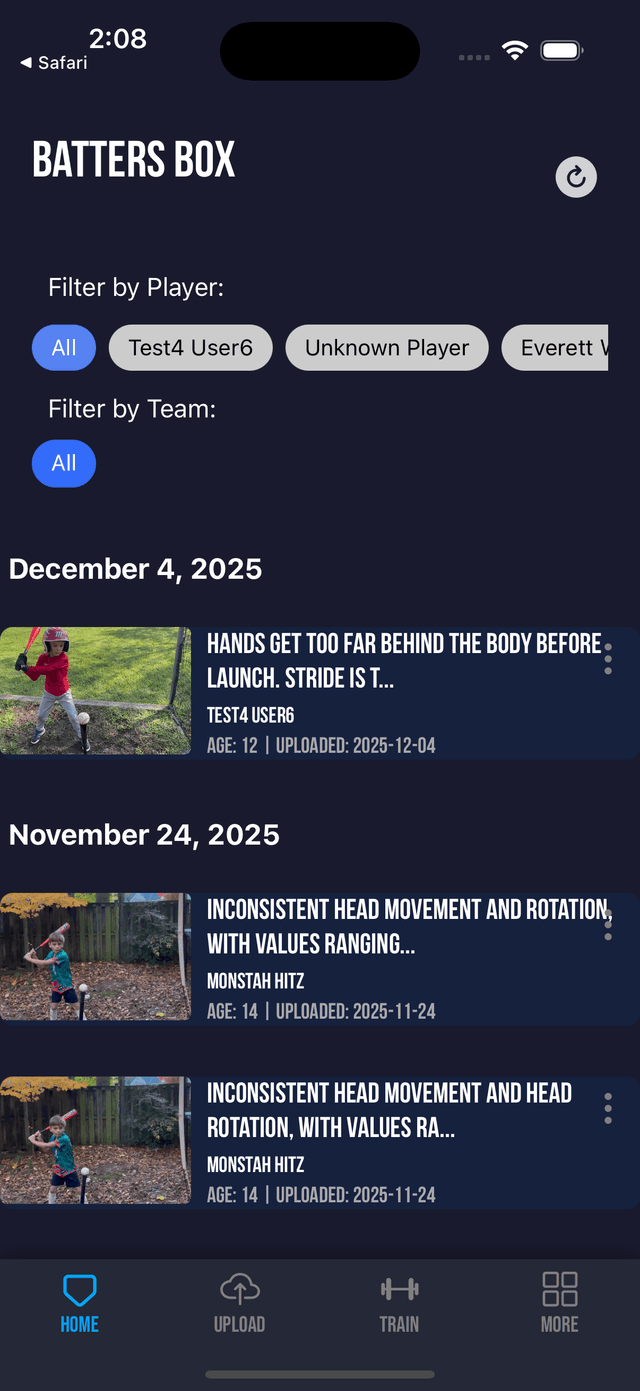
  • Go to the Home tab and filter by player or team.
  • Tap any clip to open the swing detail view.
  • Explore AI metrics, overlays, and recommended focus points.
  • Pinch to zoom and scrub frame-by-frame to study key positions.
  • Share individual swings with a secure link for remote review.
Review swings oldest to newest to clearly see how a player’s mechanics evolve over time.
MetricsSlow-mo reviewFrame-by-frame
Home feed with swing list
3
Create Feedback
Leave notes, ratings, and drills — visible instantly.
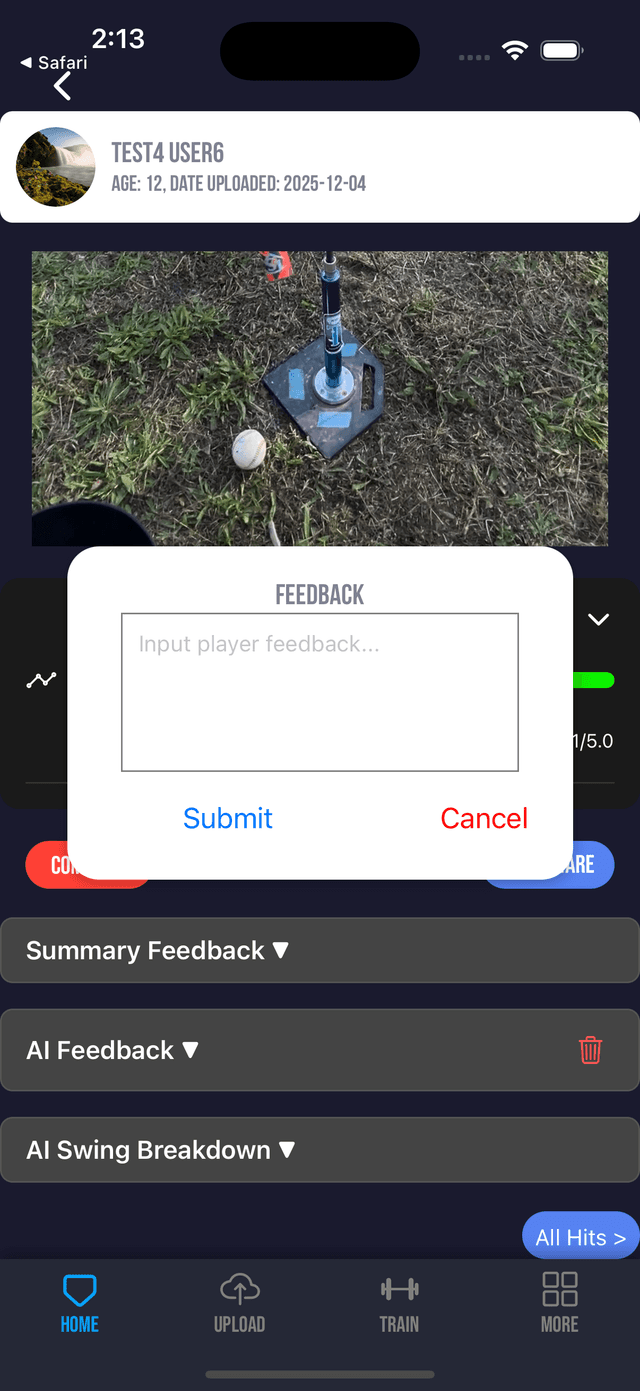
  • Open any swing and access the feedback controls.
  • Rate key stages (stance, load, stride, contact, finish, etc.).
  • Dictate or type feedback calling out strengths, 1–2 key fixes, and suggested drills.
  • Tap Submit to send feedback straight to the player's feed.
Powerful pattern: 1 sentence of praise, 1 sentence on the main fix, and 1 drill suggestion. Short and specific wins.
Coach toolsDrill suggestionsPlayer development
Feedback detail screen
4
Share Clips
Export highlights with overlays and share them anywhere.
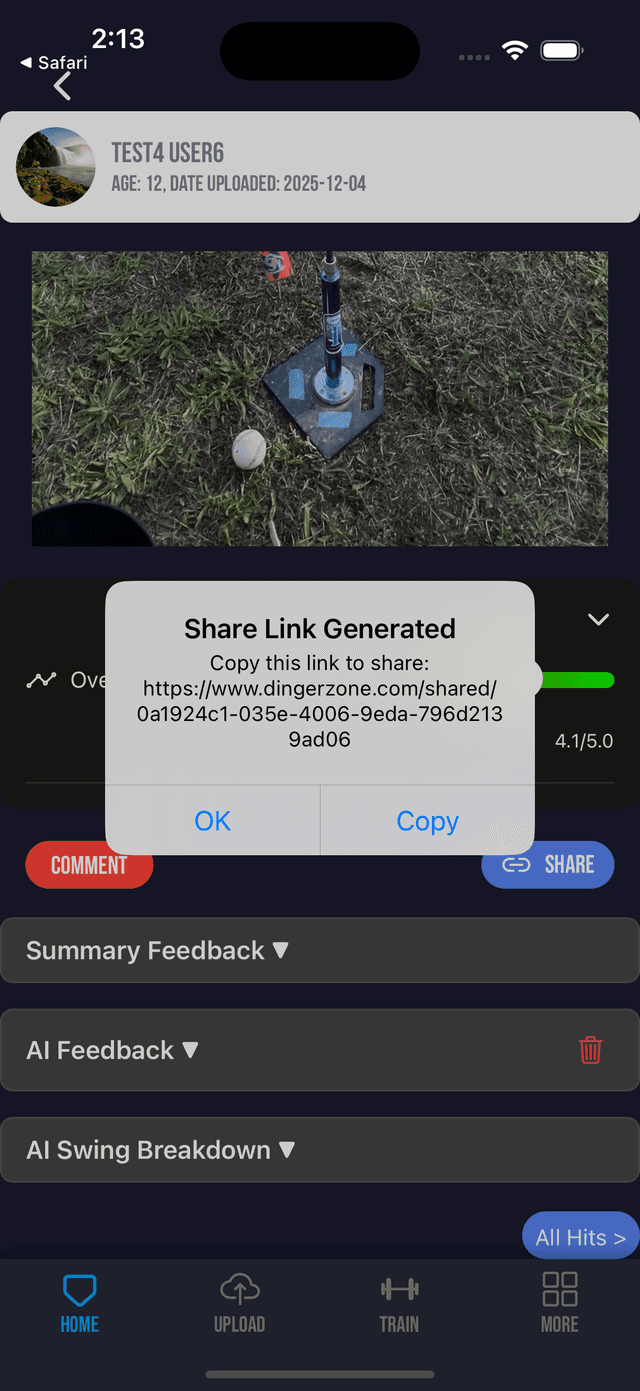
  • From the swing detail view, tap the Share option.
  • Choose options like metrics overlay, slow-mo, or watermark (if available).
  • Generate a secure link (time-limited) or save to your camera roll.
  • One-tap share to Instagram, X, Hudl, team chats, and more.
A short clip paired with one crisp coaching cue usually gets more engagement than a wall of text.
SocialRecruitingTeam film
Share clip options
Squad goals unlocked — now go create teams, review swings, send feedback, and share bombs. Need help? Email support@dingerzone.com.